01 / PRODUCT PHOTOGRAPHY
AI product photography: start with a ceramic cup
A useful product prompt does not have to be long. Establish the subject, describe the setting and light, then add a few constraints. This white ceramic cup is a practical starting point you can adapt to your own ideas.
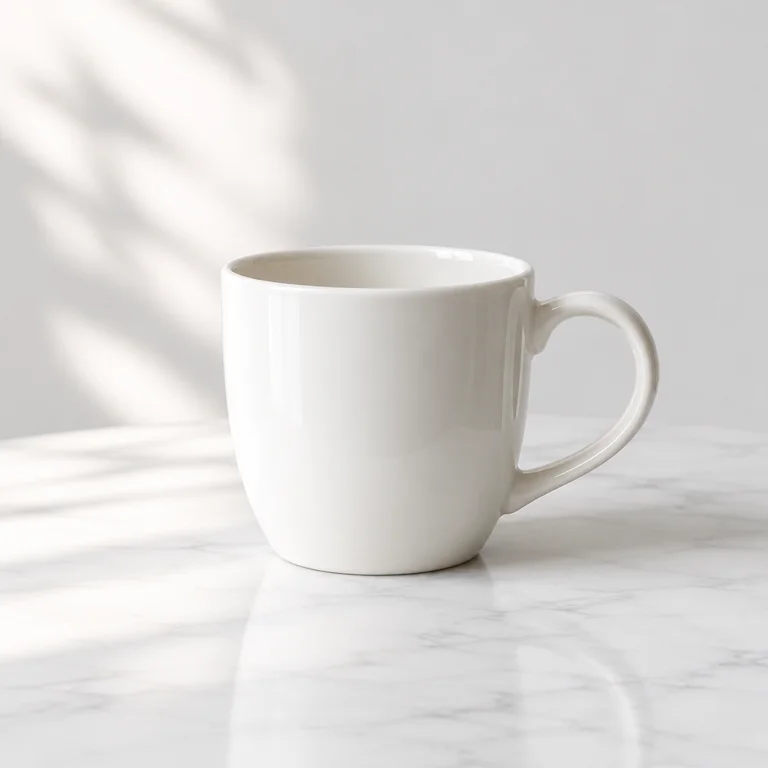
The exact prompt used
Original English promptA minimal studio product photograph of one white ceramic cup on a white tabletop, soft natural daylight, refined composition, no text or logos.GPT Image 2.6 · Flare / 1024 × 1024 / low quality / low complexity. Display images are resized WebP copies.
Use this prompt in the studio ↗Describe what should be in the frame
The prompt specifies one white ceramic cup on a white tabletop. Observable details such as material, color and placement communicate more than an abstract phrase like “premium product photography.”
Try the pattern: one subject + its material or color + its position. If you need the appearance of a real product, use a reference image you have permission to use and check whether the result changes important details.
Use light to shape the material
Soft natural daylight gives the model a clear lighting direction, while the white tabletop keeps the setting simple. Try changing one phrase at a time: side window light, soft shadows, or a pale gray background.
Avoid conflicting instructions such as dramatic high-contrast lighting and absolutely no shadows. Establish one coherent direction before adding more detail.
Recreate the workflow
Open the studio with this prompt. Select GPT Image 2.6 Flare, the 1:1 preset and Quick quality. Under advanced settings, choose Simple complexity. These are the settings used for the example; another run will not necessarily produce the same image.
The original is a 1024 × 1024 PNG. The image on this page is a compressed WebP copy. Explore compositions with a quicker setting, then adjust quality if needed. To change just the cup color, continue with the reference-image guide.
Break the prompt into four editable parts
The subject in this prompt is one white ceramic cup; the setting is on a white tabletop; the lighting is soft natural daylight; and the constraint is no text or logos. Locate the part you want to change before rewriting the entire prompt. No rim diameter, lens focal length or brand was specified, so this result cannot establish the dimensions or appearance of a real product.
For a wooden setting, try changing only white tabletop to pale wooden tabletop while keeping the other words and the 1:1 dimensions. This is a suggested exercise, not a tested result shown in this article. Compare the background first, then check whether the cup changed unintentionally. If preserving this particular cup matters, use the original result as a reference for the next edit.
Review the image before downloading
Start at thumbnail size: is the whole subject visible, is the handle too close to the edge, and is the setting sufficiently clear? Zoom in next: check the inner and outer rim, the joins between handle and body, and the contact between cup and table. Finally inspect whether the highlights suggest the intended material and whether the shadow direction fits the lighting.
If the subject is cropped, revise the framing instruction to request the entire cup with space around it. If the background is busy, remove decorative objects or conflicting setting descriptions. A higher quality setting does not replace these composition decisions. Settle the subject and layout first, then raise quality so that the effect of each change is easier to judge.
Check the result in its intended layout as well. Cropping a square into a banner can remove the handle, and a white background may create a visible boundary on a dark page. For a real product, compare color, proportions and markings with the source material rather than treating generated detail as product information.
Try it with your next image.
Start creating ↗Keep exploring
AI product photography: start with a ceramic cup
Build a clean product image by describing the subject, background and light. Includes a real TaoTao result, its exact prompt and settings.
Read the guide ↗02 / REFERENCE IMAGESReference-image editing: change the cup color
Use a generated white ceramic cup as a reference and change it to light blue. See the before-and-after images, exact instruction and workflow.
Read the guide ↗03 / SIZE & COMPOSITIONAI image aspect ratios: square, landscape or portrait?
Choose among nine image ratios, including 1:1, 4:3 and 16:9. See actual pixel dimensions and the rules for custom image sizes.
Read the guide ↗