02 / REFERENCE IMAGES
Reference-image editing: change the cup color
A reference image gives the next generation a visual starting point. Here we take the white cup from the product-photography guide, request one color change, and specify what we would like to keep.
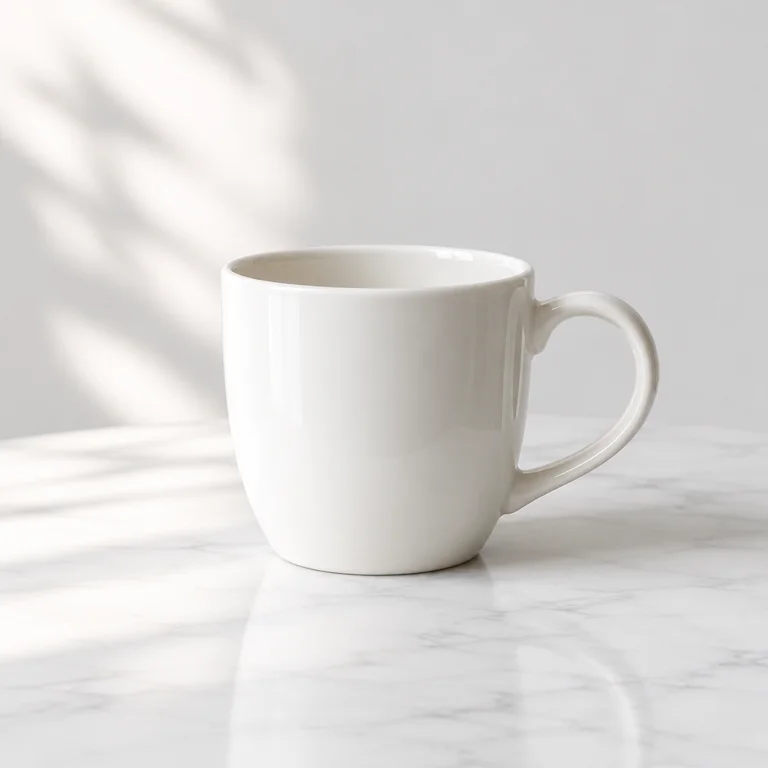
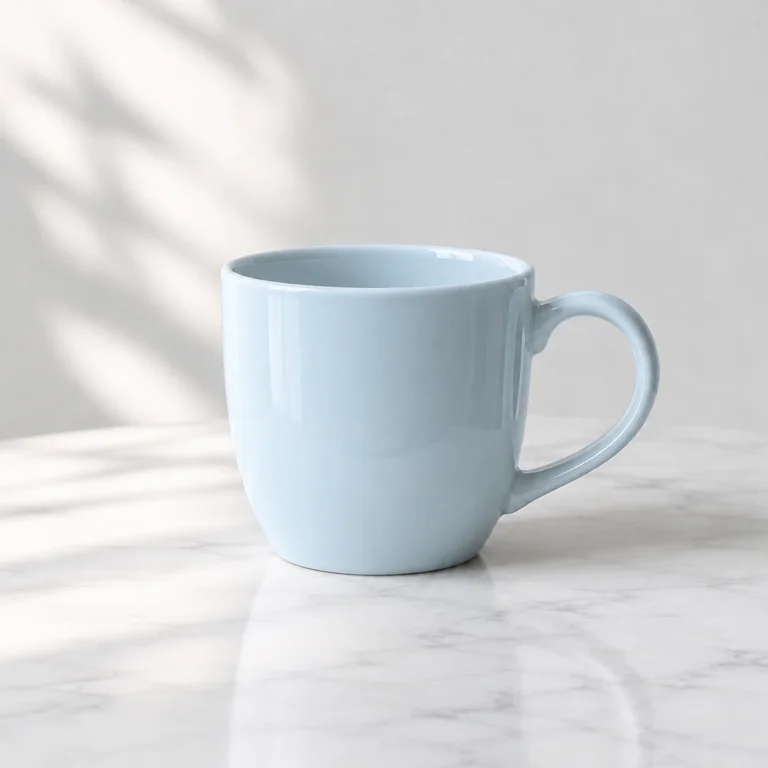
The exact prompt used
Original English promptKeep the same ceramic cup, composition and soft light. Change the cup color to a gentle light blue. No text or logos.GPT Image 2.6 · Flare / 1024 × 1024 / low quality / low complexity. Display images are resized WebP copies.
Use this prompt in the studio ↗This link fills in the prompt only. Generate or prepare a cup image, then upload it as a reference. The example image is not uploaded automatically.
Say what to keep and what to change
The exact instruction asks to keep the ceramic cup, composition and soft light, then change the color to light blue. This gives more context than simply writing “make it blue.”
Compare the rim, shadows and background as well as the color. Reference-image generation is not a pixel-precise edit and does not guarantee identical geometry or subject identity.
Make the edit in the studio
After generating the first image, choose Continue creating to load that result as a reference. Alternatively, switch to Reference image and upload a JPG, PNG or WebP file up to 10 MB.
Paste the instruction, choose the model, ratio and quality, then submit. Each request creates one new image and a successful result uses one daily credit. The previous result stays in My images.
Keep each revision easy to evaluate
Change one major factor per round: color, background or light. Keep the original and the previous result so you can compare them before deciding what to change next.
If the image drifts too far, return to the original reference, simplify the instruction and describe the defining features. Upload only content you have permission to use; reference images and prompts are sent to OpenAI for processing.
Define an order for checking what should stay unchanged
This example aims to preserve the cup, composition and soft lighting while changing its color. Compare the subject's position and scale first, then its rim, handle and base, and finally the background and shadow. This separates the requested color change from structural drift instead of accepting a result merely because it looks similar.
If the color is right but the handle is distorted, the result still fails the preservation goal. Return to the original white-cup image, remove wording such as stylize or redesign that invites broader changes, and request just the color edit. Repeatedly using an already-drifted result as the next reference can carry those changes forward.
Troubleshoot three common outcomes
The whole scene turns blue: check that the prompt asks for the cup color to change, rather than for a blue scene. Specify separately that the table, background and lighting should remain. A precise brand color still needs measurement and correction in an editing tool; natural language alone does not guarantee matching color values.
The composition moves: start again from the original and keep its aspect ratio. Changing both ratio and color asks the model to reorganize the available space as well, which makes it harder to identify the source of a composition change.
The result is unsuitable: save the original and the attempted prompt before deciding whether to retry. Each new generation creates a separate task, and successful results count under the site's allowance rules. Continue creating generates another image using the result as a reference; it is not a lossless undo or a pixel-level local edit. Small lettering, logos and boundaries that must remain exact still need individual inspection.
Try it with your next image.
Start creating ↗Keep exploring
AI product photography: start with a ceramic cup
Build a clean product image by describing the subject, background and light. Includes a real TaoTao result, its exact prompt and settings.
Read the guide ↗02 / REFERENCE IMAGESReference-image editing: change the cup color
Use a generated white ceramic cup as a reference and change it to light blue. See the before-and-after images, exact instruction and workflow.
Read the guide ↗03 / SIZE & COMPOSITIONAI image aspect ratios: square, landscape or portrait?
Choose among nine image ratios, including 1:1, 4:3 and 16:9. See actual pixel dimensions and the rules for custom image sizes.
Read the guide ↗